How do I create a payment recipient?
To begin enjoying fast, secure and cost-effective domestic and international payments, first you need to create your Centtrip list of suppliers and payees.
Which platform are you using?
To begin enjoying fast, secure and cost-effective domestic and international payments, first you need to create your Centtrip list of suppliers and payees. You can do this quickly and easily by adding them to your Recipients list, either individually on an ad hoc basis, or in batch.
.png)
- Click ADD RECIPIENT and enter the account and payment details of your new payee into the form.
- Note - you must select the currency you intend to make payment(s) to this recipient in. To send payments in another currency, please set up your recipient for each currency.
- You will need to verify your new recipient as a Trusted Payee. Select your preferred verification method from the dropdown; Email or Mobile App.
- Follow on-screen instructions to enter your app or email generated security code and 'SUBMIT'.
What are the validation requirements?
Recipient Name
Initials -
Full names are required; recipients which have only an initial in the first name or last name field for individuals will not be accepted. Each name field must contain at least one full name part
Examples:*
| First Name | Last Name | Accepted? |
|---|---|---|
| Joe | B. | NO |
| J. | Bloggs | NO |
| Joe | Bloggs | YES |
| Joe M. | Bloggs | YES |
| Joe | M. Bloggs | YES |
* This applies only for beneficiaries of type 'individual'.
Numeric Characters -
Individual's names should not include any numbers. Company names can include numbers, but should not be made up entirely of numbers.
Examples:
| First Name | Last Name | Accepted? |
|---|---|---|
| Joe | 12B | NO |
| J121 | Bloggs | NO |
| Joe | Bloggs | YES |
| Joe M. | Bloggs | YES |
| Joe | M. Bloggs | YES |
| Company Name | Accepted? |
|---|---|
| 12345678 | NO |
| Acme 12 Ltd | YES |
Company Signifiers -
Company signifiers (e.g. Ltd, Inc, SA, GMBH etc.) must not be included in the Last Name field for individual recipients.
Example:
| First Name | Last Name | Accepted? |
|---|---|---|
| Joe | Bloggs Ltd. | NO |
| Joe | Bloggs Inc. | NO |
Recipient Address Details
The beneficiary address fields should not be populated with only numeric characters:
| Address | State/Province | City | Accepted? |
|---|---|---|---|
| 12 Acme Road | 123456 | 34235 | NO |
| 12 Acme Road | 123456 | LASD1415352 | NO |
| 123424 | Illinois | LASD1415352 | NO |
| 12 Acme Road | Illinois | LASD1415352 | YES |
| 12 Acme Road | Illinois | Chicago | YES |
Before making a payment to a recipient in your Centtrip account, please check that these requirements are met. If not, you can vist Add Recipient and set your beneficiary up as a new recipient.
How do I create recipients in batch?
Save time when adding multiple payment recipients to your Centtrip account. Our batch upload feature enables you to add hundreds of recipients in just one click, removing the need to create and verify each one individually.

- After signing into your account, visit the Recipients tab and click 'UPLOAD RECIPIENTS'.
- Scroll down and click either 'EXCEL TEMPLATE' or 'CSV TEMPLATE' to download the 'RecipientUploadTemplate’.
- Complete all relevant fields of the template for each recipient.
- Save your file and visit the same 'UPLOAD RECIPIENTS' page of your account (step 1).
- Follow the steps under 'Verify as Trusted Payee' to verify using either an App or email generated code.
- Click 'PICK A FILE...' and select your saved recipient template to upload it.
- Once processed, you will receive an on-screen notification confirming the number of successful/unsuccessful beneficiary uploads. Press 'OK' to view the details.
- Download the file provided - this will contain any unsuccessful recipients, along with the error reason. Example below:

- Correct the errors on this document and follow step 5 onwards to re-upload it in the same way.
- Once complete, you can make individual payments OR send payments in batch.
Hints & Tips
- You only need to re-upload the unsuccessful recipients, all others will have been processed successfully.
- 'Verify as Trusted Payee' - when entering the first 4 digits of the new recipient’s Account Number or IBAN, please use the details of the first recipient in the batch.
- The ‘Override’ field of the template can be used to update the details of an existing beneficiary; enter ‘Y’ into the row and the recipient (with the same nickname) will be updated accordingly.
How to complete your template
When completing your 'RecipientUploadTemplate', each recipient must occupy one row and all relevant fields must be filled accordingly. Information on how and which fields to complete is provided below:
Mandatory Fields
| Column | Field | Additional information |
|---|---|---|
| A | ‘Nickname’ | Each recipient has a ‘Nickname’ which is used to make payments going forward. Nicknames do not affect payment details and can be in the form of a code, name or any text/numbers that you can use to identify each recipient. |
| B | ‘CountryCode’ | The two-letter country code of the recipients bank. |
| C | ‘CurrencyCode’ | The three-letter currency code of the recipient's bank. |
| D and E, or F | ‘FirstName’ & ‘LastName’ OR ‘CompanyName’ | Each beneficiary must be set up as either an Individual or Corporate entity. On the template you must enter either the ‘FirstName’ & ‘LastName’ OR ‘CompanyName’. |
| I | ‘Address1’ | Beneficiary address - can use country code. |
| J | ‘Address2’ | Beneficiary address - can use country code. |
| K | ‘City’ | Beneficiary address - can use country code. |
| L | 'Postcode’ | Beneficiary postcode - can be '0000'. |
| M | 'State’ (if appliable) | Always required for countries which have states. |
| N-S | Bank Account Details | Only two out of the six bank account fields need to be completed for each recipient. The combination depends on the Bank Location and the Payment Currency; use the table below to determine which details are required. |
Which bank account details are required?
In the table below, reference the Beneficiary Bank Location and the Payment Currency to determine which two out of the six bank detail fields are required for each recipient. You can leave the other fields blank.
| Beneficiary Bank Location | Payment Currency | Unique Identifier Required | Bank Code Required |
|---|---|---|---|
| United States | USD | Account Number | ABA (9 digits) |
| United States | GBP | Account Number | SWIFT/BIC |
| United States | EUR | Account Number | ABA (9 digits) |
| Europe | USD | IBAN | SWIFT/BIC |
| Europe | GBP | IBAN | SWIFT/BIC |
| Europe | EUR | IBAN | SWIFT/BIC |
| United Kingdom | USD | IBAN | SWIFT/BIC |
| United Kingdom | GBP | Account Number | Sort-code |
| United Kingdom | EUR | IBAN | SWIFT/BIC |
| Asia | All currencies | Account Number | SWIFT/BIC |
| Africa | All currencies | Account Number | SWIFT/BIC |
| South America | All currencies | Account Number | SWIFT/BIC |
| Australasia | All currencies | Account Number | SWIFT/BIC |
| Canada | All currencies | Account Number | SWIFT/BIC |
| Antarctica | All currencies | Account Number | SWIFT/BIC |
Hints and tips
- If you can't see the country/currency combination you need and aren't sure which bank details you need to provide, visit the main Recipient tab of your account and select the required currency and country - the necessary fields will be displayed there.
- The ‘Override’ field can be used to update the details of an existing beneficiary; enter ‘Y’ into the row and the recipient (with the same nickname) will be updated accordingly.
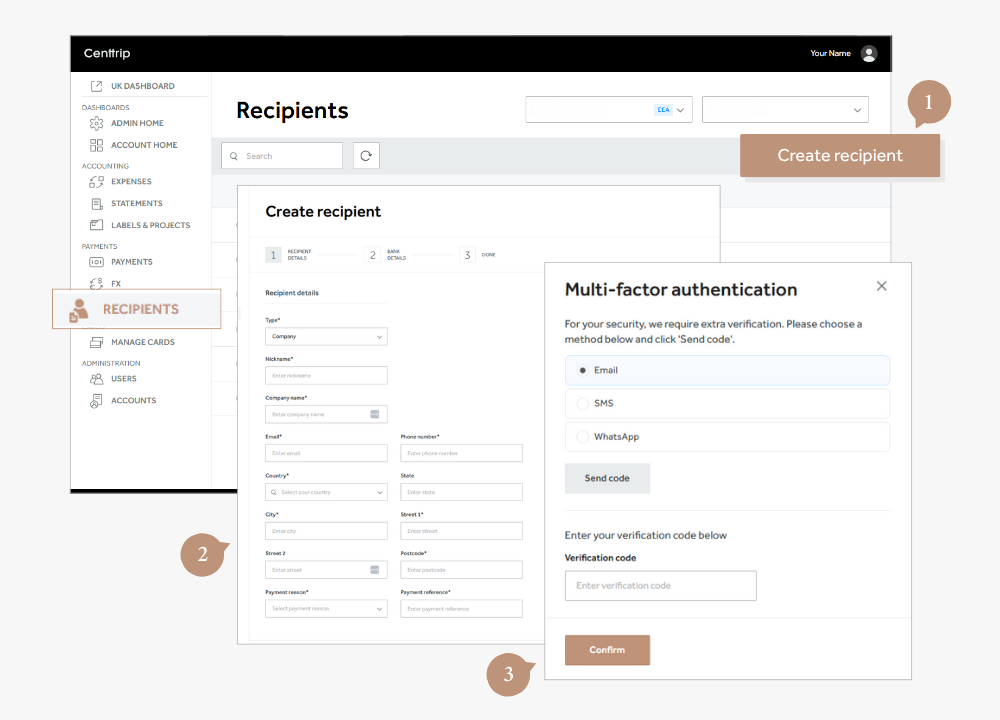
- Open the Recipients Section - from the left-hand menu, select Recipients, then click the Add Recipient button on the right.
- Enter Recipient Information - follow the on-screen steps to fill in the required recipient details. Click Next to proceed through each step.
- Complete Multi-Factor Authentication - to verify the recipient's creation, complete the authentication process by choosing your preferred method: Email, SMS, or WhatsApp. Enter the verification code sent to you and click Confirm to finish.